Keys BuddyReturn to site

Manual

Rack up, then play.

Keys Buddy is a live keys rack: SoundFonts and plugins layered across one keyboard, saved as a rack, recalled in a press. Here is the whole thing, in the order you will need it.

Six steps to a rack that plays.

Start to finish in about five minutes, assuming you already have a SoundFont on the machine. Everything after this section is reference.

  1. Step 01

    Give it sounds

    Open Sounds and choose Import SoundFont to copy an .sf2 or .sf3 into the managed library, or Add source folder to index a folder where it already lives. Importing is the safer default: the file stays put and stays findable.

  2. Step 02

    Start a rack

    A rack is one saved rig: every track, sound, effect, split and snapshot in one file. Go to Racks and press New, then move to Live and press + Add track.

  3. Step 03

    Fill the track

    Tap the Instrument slot to pick a SoundFont preset or a VST3 / Audio Unit instrument. Tap MIDI FX for an arpeggiator, step sequencer, octave-up or Easy Chord, and Insert FX for effects after the instrument.

  4. Step 04

    Split the keyboard

    In Layers, drag either end of a track’s bar to set its key range, or set the low and high notes from the two dropdowns. Track Transpose shifts one track in semitones; the Transpose control in the header moves everything at once.

  5. Step 05

    Set your snapshots

    Back in Live, balance the faders for a section of the song, then press + Add and Save Snap. Up to six snaps per rack, each holding volume, pan, mute, solo and sends. Selecting one fades the mixer across instead of jumping.

  6. Step 06

    Save and map

    Racks → Store As names the rack; Save overwrites it from then on. Then press the keyboard icon in the header for MIDI Learn and put the controls you need on the hardware in front of you.

The header runs the set. The sidebar builds it.

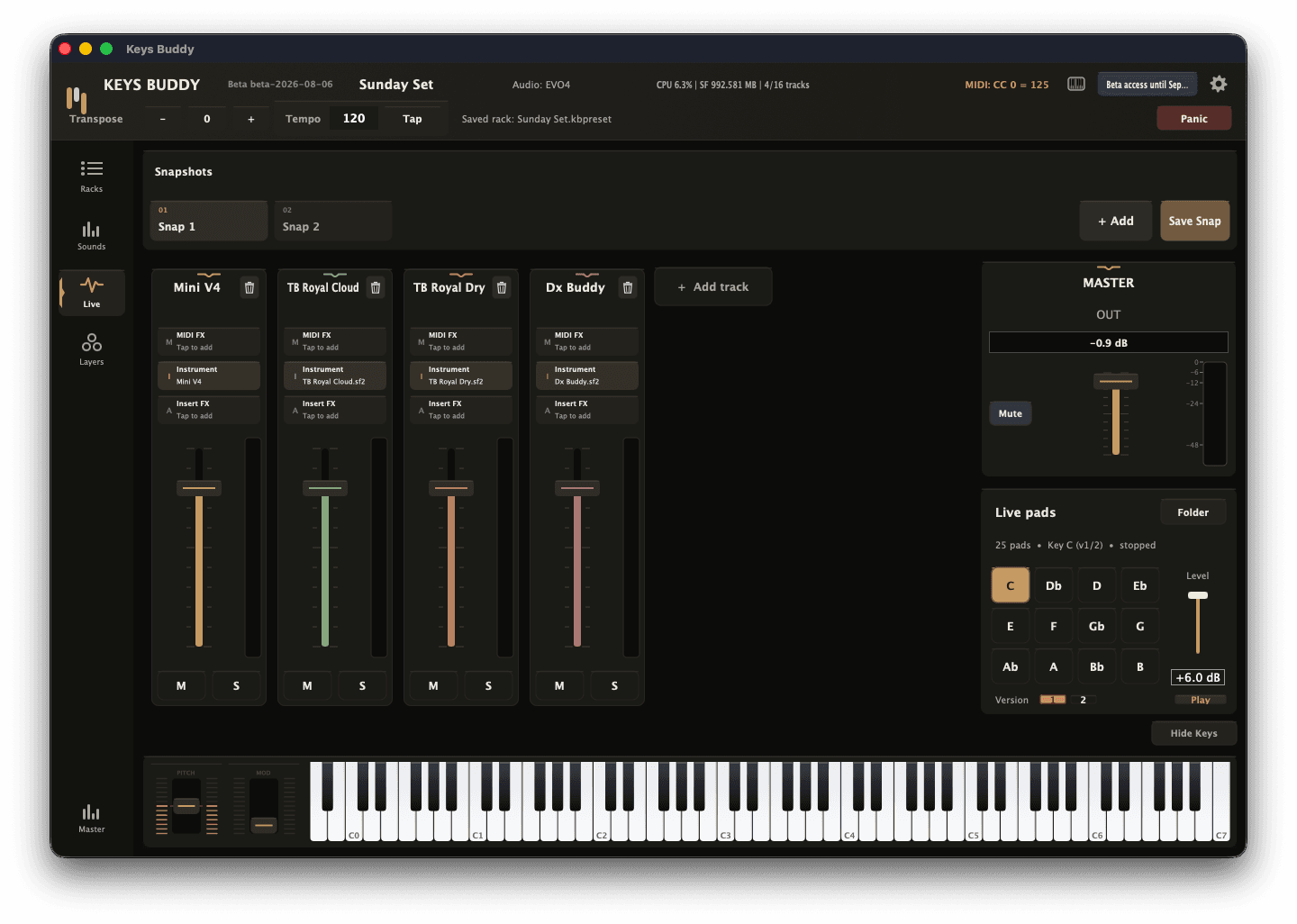
The Keys Buddy Live page: a rack called Sunday Set with two snapshots, four instrument tracks each showing MIDI FX, instrument and insert FX slots with faders, a master strip, and the live pad key grid
The Live page with a four-track set loaded. The five sidebar pages are Racks, Sounds, Live, Layers and Master; the header stays the same on all of them.
Transpose
Moves every track up or down in semitones, without touching each track's own transpose.
Tempo and Tap
One shared BPM for arpeggiators and step sequencers. Tap it in if you do not know the number.
Status line
What just happened: the rack that loaded and how long it took, the SoundFont count, the last delete.
Audio and load
The active output device, CPU use, SoundFont memory, and how many of the 16 track slots are filled.
MIDI CC readout
The last controller message received, so you can confirm a knob is actually reaching the app.
MIDI Learn
The keyboard icon. Turns on learn mode, where clicking a highlighted control arms it for mapping.
Settings
The gear: audio device, MIDI inputs, plugin scanning, saved mappings, fade times and licence.
Panic
Kills every stuck note and voice. Reachable at all times, and mappable to a footswitch.

The five pages.

The sidebar is the shape of the app. Two pages are for building the rack, two are for playing it, and one is the output stage.

Racks

Your library of saved rigs, and everything you do to them between sets.

New and Store As
New clears the rack. Store As saves the current one under a name; Save overwrites it afterwards. Keys Buddy warns before replacing a rack that has unsaved changes.
Load Rack
Loads the selected rack. Sounds and instruments come back first so the rack is playable before the effects finish restoring.
Search and Favorites
Search by name, or tap the heart and filter to Favorites. The list shows saved tempo and when each rack was last touched.
Duplicate, Rename, Delete
Duplicate before you experiment on a rack that already works.
Share
Writes a portable .kbpatch you can send to another player. It carries the settings, never the SoundFont files.
Import
Brings a .kbpreset or .kbpatch into the library. You can also drag either file straight onto the window, or open it from Finder or Explorer.

Sounds

Every SoundFont Keys Buddy knows about, indexed once and remembered.

Import SoundFont
Copies the file into Keys Buddy's own managed library. Recommended: managed files stay organised and are easy to relink later.
Add source folder
Indexes a folder in place, for libraries too large to copy or shared with other software. Folders are scanned in the background.
Search
Searches SoundFonts, folders and cached presets. Preset names are cached the first time a file loads, so later searches never reopen it.
All, Favorites, Missing
Missing filters to files that have moved or gone offline.
Find Missing in Folder
Points Keys Buddy at a folder and searches it and every subfolder. Locate Selected File relinks one exact file. Favorites and cached presets survive either.
First preset
Pick a preset from the dropdown to load it straight into a new track, without building the track first.

Live

The mixer, the snapshots and the pads. This is the page you leave open on stage.

Snapshots
Up to six per rack, across the top. + Add captures the current mixer, Save Snap updates the selected one. Fade time is set in Settings.
Track strips
MIDI FX, then Instrument, then Insert FX, then the fader and meter. Up to four MIDI effects and four inserts per track. M mutes, S solos.
Add track
Up to 16 tracks in a rack. Dropping SoundFont files on the window creates a track for each, up to the free slots.
Master
The output fader, meter and mute for the whole rack. The Master page in the sidebar holds the master insert effects.
Live pads
Folder points at a folder of key-named recordings. Choose a key, choose a version, set the level, press Play. Loops seamlessly and crossfades when you change key.
Show Keys
Shows or hides the piano, pitch bend and mod wheel under the mixer, for when you want the screen back.

Layers

Where every track sits on the keyboard, seen all at once.

Key range
Each track is a bar over the keyboard below. Drag either end, or set the low and high note from the dropdowns. Reset All Key Range puts everything back to full range.
Track Transpose
Shifts one track in semitones, so a bass patch can sit an octave down under the same hand.
The keyboard
Click it to audition a sound with no hardware connected, and watch played notes light up while you rehearse. Both behaviours can be switched off in Settings.

Master

The output stage, kept separate from the per-track work.

Master inserts
Effects across the whole rack, in the order you place them. Bypass, reorder, edit or remove without losing their saved state.
Output
Master volume, pan, mute and mono, with metering. Mono is there for the times the house takes one input.

What matters once the room is full.

The parts of Keys Buddy worth learning before a set rather than during one.

Map it once

Press the keyboard icon in the header. Mappable controls highlight; click one, then move a knob or press a note. The header tells you what it is waiting for. Track and master levels, mutes, solos, snaps, pads, transpose, tempo and Panic can all be learned. Review or clear mappings under Settings.

Change the whole rig at once

Snaps are the fastest thing in the app. Build one per section, map them to buttons, and a verse-to-chorus change is one press instead of four fader moves. Continuous controls fade rather than jump, so the change lands under the music.

Keep a floor under the room

Point the pads at a folder of key-named loops and Keys Buddy sorts them by key for you. Name each file with its key: C, Db, F#. Add a number for alternate takes, like C 2. Sharps, flats and the ♯ / ♭ symbols are all understood.

When a note sticks

Panic sits in the top right and silences every voice. A dropped MIDI cable or a sustain pedal pulled mid-note is the usual cause. Map it to a footswitch before you need it.

Send a rack to another player

Share writes a .kbpatch. It records which SoundFonts the rack needs by name, size and hash, so the receiving copy of Keys Buddy matches them against sounds already imported and asks only about the ones it cannot find.

Before the first set

Set the audio device and buffer size under Settings, scan plugins there once so a bad plugin cannot take the app down mid-scan, and load your rack early: the status line reports the load time so you know what to expect at soundcheck.

Files and limits.

Rack files
Racks saved in the library are .kbpreset. Racks shared with other players are .kbpatch. Both can be dragged onto the window or opened from the desktop.
What a shared rack carries
Tracks, mixer state, MIDI settings, effects and their parameters, tempo, transpose and snaps. It never bundles the SoundFonts, and third-party instruments and effects must already be installed on the receiving machine.
Missing files
A rack with a missing SoundFont still opens. Relink the file and everything else stays exactly as it was.
Sound formats
SoundFonts: .sf2 and .sf3. Pads: WAV, AIFF, FLAC, Ogg, MP3 and the other formats the audio engine supports.
Instruments and effects
VST3 on macOS and Windows, Audio Units on macOS. Plugins are scanned outside the main process, so a plugin that fails to scan does not take Keys Buddy with it.
Audio
CoreAudio on macOS. WASAPI and DirectSound on Windows, with ASIO available in builds made against the Steinberg SDK. Device, sample rate and buffer size are all selectable.
16tracks per rack
6snapshots per rack
4insert effects per track
4MIDI effects per track
4send slots per track